

New Say Hello to all Soften
How to Manage Files and Folders on Mac
Practical guides on managing files and folders on Mac. Learn how to work with Finder or switch to advanced Finder alternatives for better productivity.
About Us
Our Mission Is to Simplify File Management on macOS
We aim to make file and folder management on Mac easier and more efficient for everyday users and professionals. That’s why we share practical guides on managing files in macOS using Finder and powerful Finder alternatives. Our goal is to help you organize files faster, avoid common mistakes, and choose the best file management solutions for your workflow.
Services
Feel the Power of Smart File Management on macOS
Software Design
We explore how Finder and modern Finder alternatives are designed to simplify file and folder management on macOS. Learn how a well-designed Mac file manager improves navigation, visibility, and daily workflows. Good interface design directly impacts how fast and efficiently you manage files on Mac.
Read MoreData Security
Proper file management on macOS helps protect your data from accidental deletion or loss. We share best practices for handling files securely using Finder and advanced Mac file managers. This includes permissions, safe file operations, and reliable organization strategies.
Read MoreApp Integration
Modern file managers for Mac integrate smoothly with cloud storage, external drives, and third-party apps. We explain how Finder and Finder alternatives work with services like iCloud, Dropbox, and network storage. This helps you manage all files from one place without switching tools.
Read MoreSocial Marketing
Well-organized files are essential for content creators and marketing teams on Mac. We show how to manage media files, assets, and documents efficiently using macOS file management tools. Better organization means faster content production and collaboration.
Read MoreDevelopment
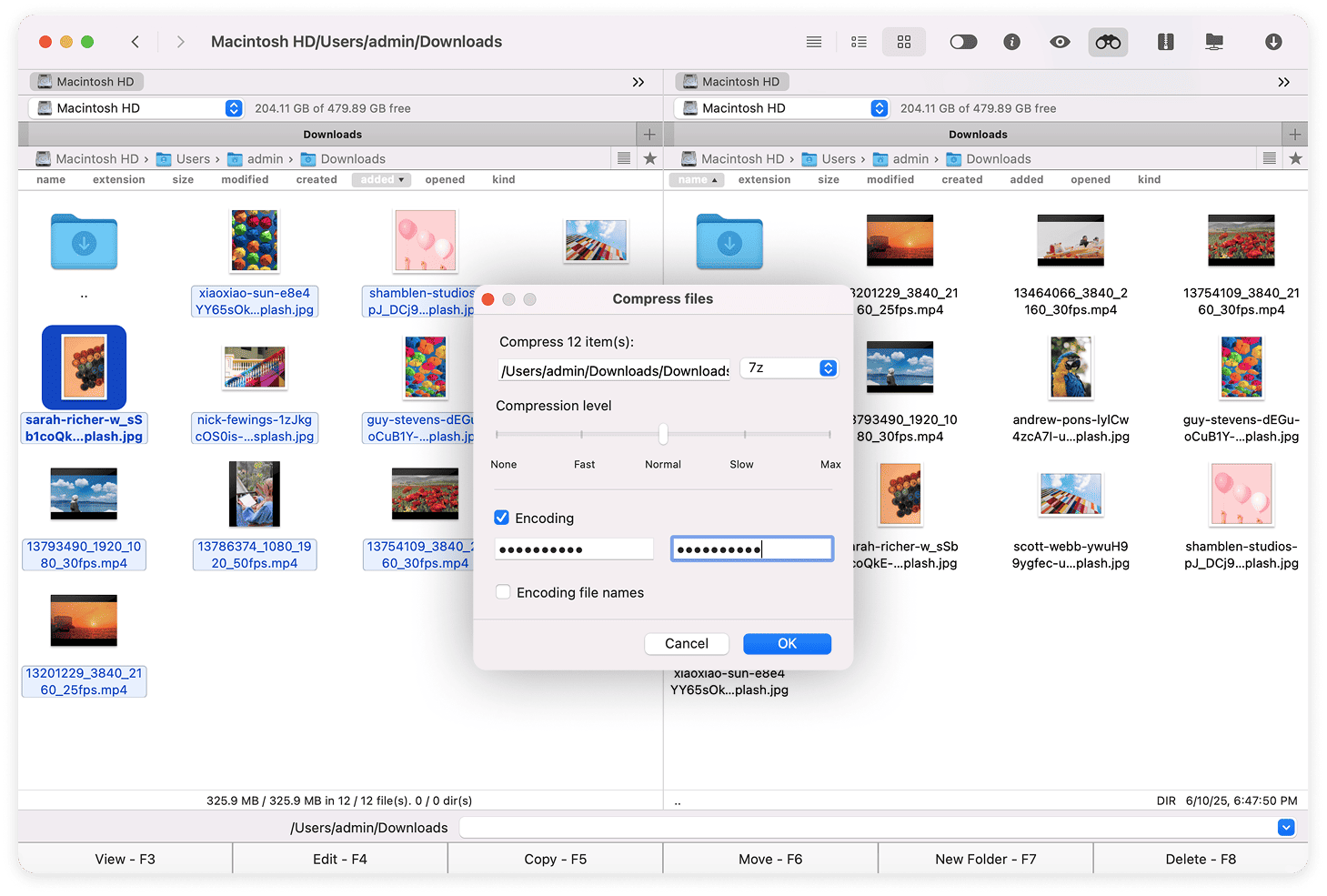
Developers rely on advanced file managers to handle project files, codebases, and directories on macOS. We cover Finder alternatives that offer dual-pane views, quick search, and automation features. These tools improve productivity and reduce errors in development workflows.
Read MoreBusiness Strategy
Effective file management on Mac supports better decision-making and operational efficiency. We explain how structured file organization helps businesses scale and maintain consistency. Choosing the right Mac file manager becomes part of a smart productivity strategy.
Read MoreHow It Work
Three Simple Step To Started Work Smarter Process
Improve speed and efficiency when managing files on Mac
Using Finder or a powerful Finder alternative helps you quickly find, organize, and move files and folders on macOS. This reduces repetitive actions and saves valuable working time. Users develop skills in fast file navigation, keyboard shortcuts, and efficient Mac file management.

Gain full control over files and folders on macOS
A modern file manager for Mac allows you to maintain a clear and logical file structure. This is essential when working with large amounts of data, backups, or cloud storage. Users build strong file organization skills and learn how to manage files on Mac more professionally.

Reduce the risk of mistakes when working with files on Mac
Advanced file managers offer features like file preview, operation history, and confirmation dialogs to prevent accidental deletion or data loss. This is especially important when handling important documents or work projects. Users develop safer file-handling habits and better data management skills.
Testimonial
Some Awesome Words From Our Happy Clients
I switched to a Finder alternative after seeing a thread here, and the difference is huge. Dual-pane view and better search alone save me minutes every day. Once you manage files this way, going back to default Finder feels painful.

Roxie Payne
Finder works okay for basic stuff, but it starts breaking down when you deal with lots of files. A proper file manager made it way easier to keep projects clean and avoid duplicates. My workflow is noticeably calmer now.

Jackson Vore
I used to accidentally delete or overwrite files all the time. Using a more advanced Mac file manager with previews and confirmations fixed that. It’s not about power features — it’s about confidence when working with important data.

Breiny Lucy
Once you have assets, builds, or multiple versions of files, Finder becomes limiting. Finder alternatives give you better control and visibility over what’s actually happening. Honestly surprised Apple hasn’t improved this more.

Camryn Kay

F.a.q.
Most Trending & Popular Question
Yes, macOS has a built-in file manager called Finder, which allows users to browse, organize, and manage files and folders on a Mac.
On Mac, the equivalent of Ctrl + V is Command (⌘) + V, which is used to paste files, text, and other content in macOS.
You can browse your file system on a Mac using Finder, where all files, folders, drives, and connected devices are displayed in an easy-to-navigate interface.
To show hidden files on Mac, open Finder and press Command (⌘) + Shift + . (dot). Press the same shortcut again to hide them.
Finder works well for basic file tasks, but advanced users often need a more powerful Mac file manager for large folders and complex workflows.
Sophie Reene
Developer
Milen Carry
Manager
Lauren Flair
Designer